On this page
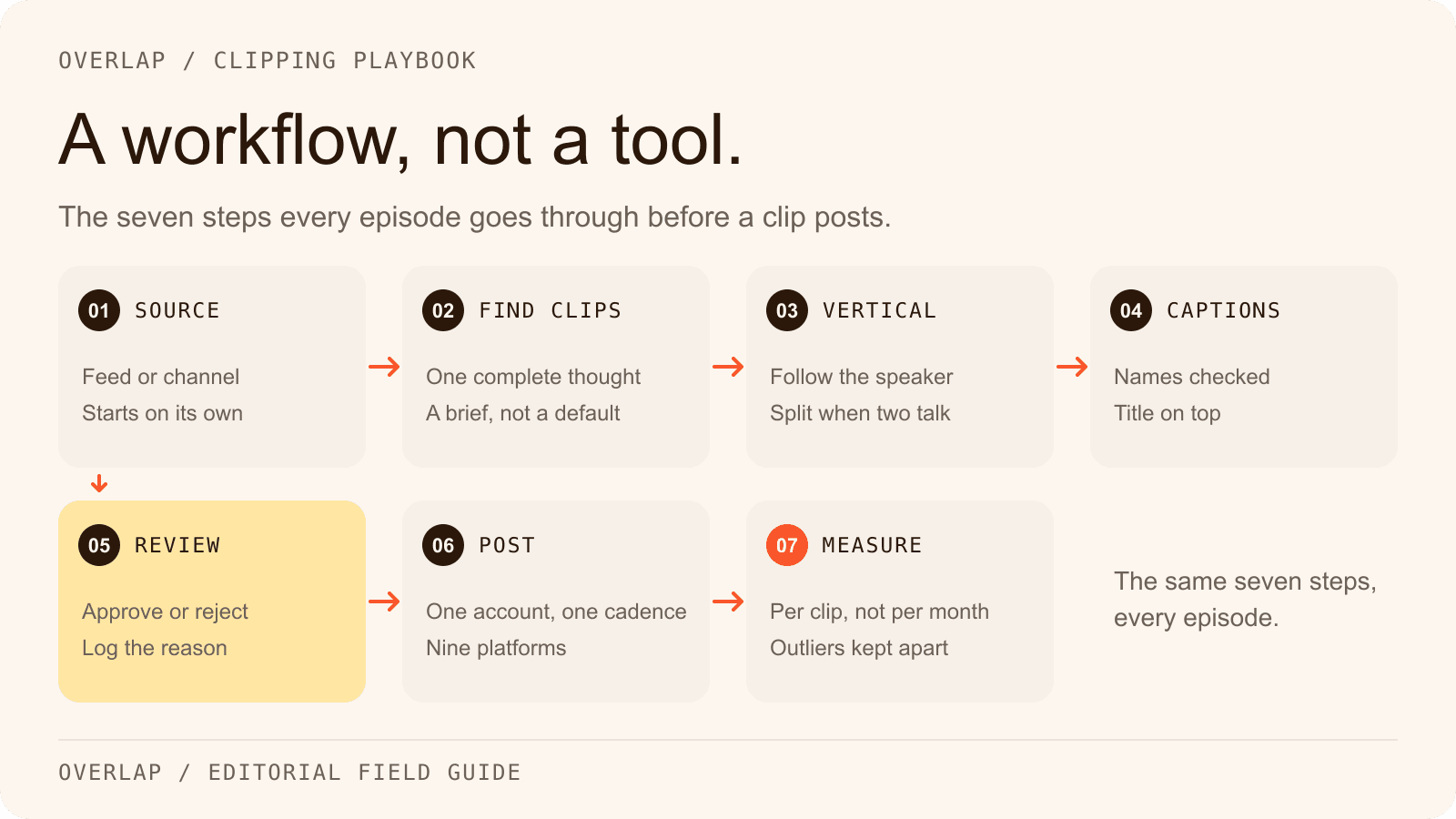
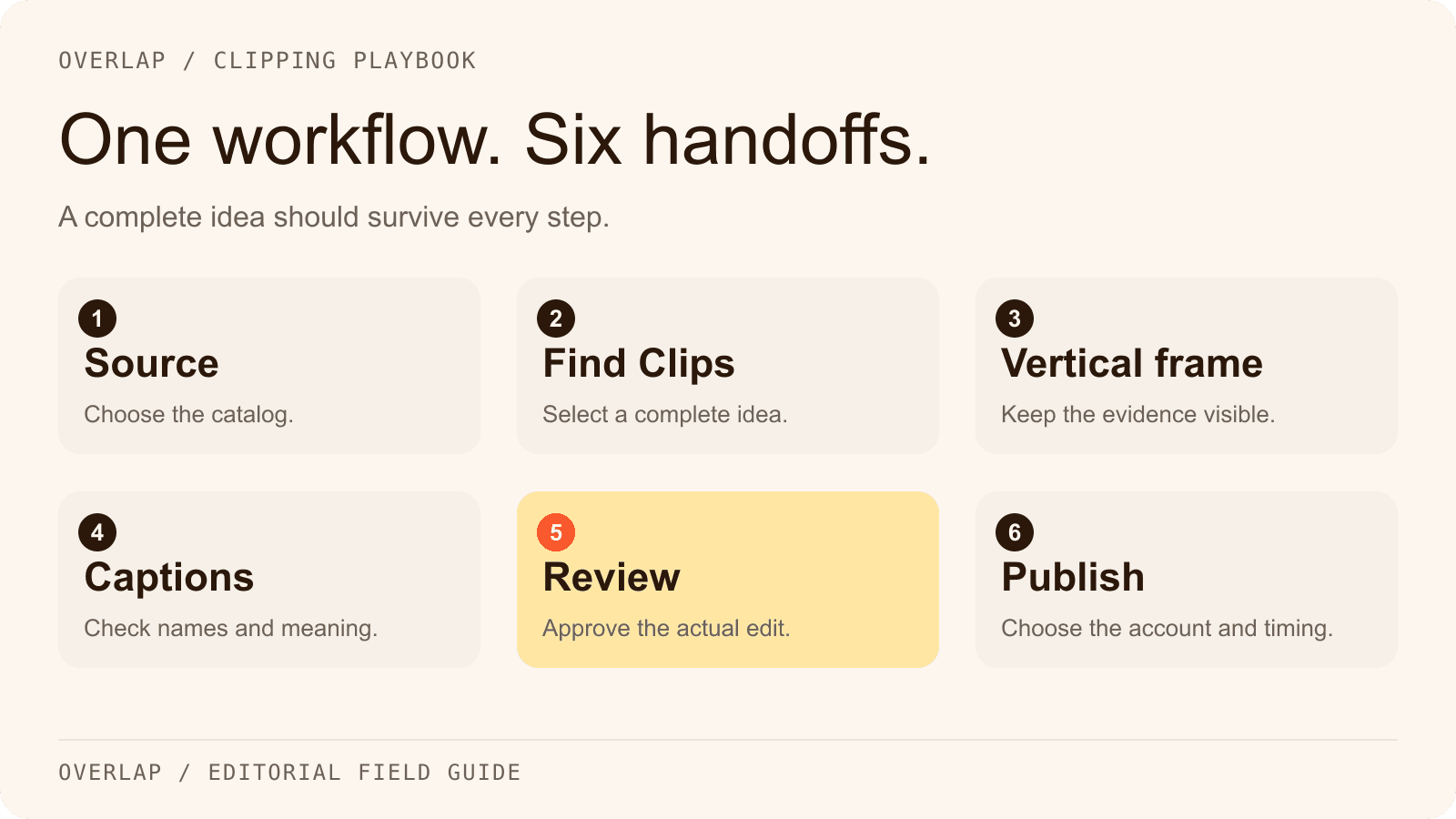
An AI clipping workflow connects source video, moment selection, editing, review and publishing. In Overlap, those steps are nodes in a repeatable agent. The useful design question is what each node should hand to the next one: a complete idea, a readable vertical frame, accurate captions and a post someone has agreed to publish.
The clip below is a real Overlap export. The settings that follow are a starting recipe for your own catalog, not a record of the exact configuration that produced this file.
Inspect the finished clip before building the workflow
This roughly 32-second vertical excerpt explains what Overlap does. Click the video to hear it. The full transcript is available on the product workflow page.
Look at three editorial choices. The host provides a plain-language description, the guest corrects an incomplete assumption, and the exchange lands on a more specific capability: finding moments from a YouTube channel. That gives the clip a reason to exist beyond the fact that somebody was speaking energetically.
It also gives us something to critique. The opening word, “Explain,” needs the next sentence to become clear. An editor should ask whether the platform caption or an accurate title can supply that context sooner. The spoken reach figure is a claim made in the conversation, not evidence of this clip's performance. An honest review can keep the useful explanation while separately checking claims.
That is the standard to carry into the workflow: understand the argument, preserve what makes it true, then format it for the viewer.
The six steps of an AI clipping agent

Start with a review-first workflow. Once the brief and output are dependable for a particular show, decide which steps can run without intervention. Make that decision per source and destination, rather than treating automation as a single switch for the entire business.
1. Choose a source with a clear editorial boundary
Use the New YouTube Video node for new uploads from a channel or playlist. Its input-length filters help exclude material that does not belong in the workflow. A playlist can be useful when a channel mixes interviews, trailers and unrelated uploads.
Other documented sources include RSS and Dropbox uploads. Choose the source that fits how the team actually delivers material. Before activating anything, verify that it points to the intended show and that the team has permission to repurpose the recording.
Define exclusions early: sponsor reads, opening music, housekeeping, embargoed segments and recordings with unusable audio. Otherwise, every downstream reviewer has to rediscover the same rules.
2. Tell Find Clips what a complete idea sounds like
The Find Clips node accepts clip-length bounds, a model choice, a prompt and transcription keywords. Choose bounds supported by your workspace. A suggested starting range for a conversational test is 30–60 seconds; shorten or extend it when the idea requires it.
The brief should identify a listener and a useful moment. “Find the most viral clips” does not tell the agent whether a guest's operational detail is more valuable than a loud disagreement.
Here is an original example prompt for a hypothetical podcast about running a small company. Adapt the audience and exclusions to your show:
Audience: owners managing their first small team.
Find moments where the speaker explains a specific decision, the alternative they considered and what happened afterward. Prefer a concrete example over general motivation.
Start where a new viewer can understand the problem. Keep the sentence that limits or qualifies the claim. Do not stitch separate statements into a meaning the speaker did not express.
Exclude ads, introductions, scheduling announcements and discussions that need an unseen chart. End after the explanation lands. Do not force an incomplete thought into the requested duration.
Use the keywords field for names, acronyms and specialized vocabulary that the transcript should recognize. Keep topical selection instructions in the prompt. Overlap's prompting guide explains how to separate the audience, context, goal and constraints.
3. Choose the vertical frame for the actual footage
The Convert to Vertical node offers content-aware and static framing options. An in-person interview, a remote recording and a screen demonstration have different visual requirements.
For a two-person conversation, check that a change of speaker does not leave the wrong person centered. For a screen demonstration, check whether the crop removes the thing being discussed. If a fixed frame preserves the explanation better, use it. Movement is not a substitute for useful composition.
4. Make captions legible and correct
Use Add Subtitles for the repeatable treatment, then review the actual output. Names, numbers and negations deserve attention: dropping “not” can change the meaning more than a slightly awkward crop.
Watch once with the sound off. Can you follow the argument? Watch once with captions in your peripheral vision. Are they covering a face, a product or a diagram? Preview the final file in the destination's composition screen so interface elements do not hide something essential.
Apply recurring brand treatments in the workflow. Save one-off boundary or caption corrections for Studio. A recurring defect belongs in the recipe; an unusual clip may need a local edit.
5. Review the clip as an editor
In Studio, inspect the transcript alongside the video and adjust the boundaries where needed. A transcript-only pass will not catch every visual problem, and a sound-off pass will not catch an awkward audio cut.
| Check | Accept when… | Revise when… |
|---|---|---|
| Opening | A new viewer understands the problem | The first line depends on a missing question or person |
| Meaning | The example and its qualification survive | A removed sentence changes the claim |
| Frame | The relevant person or object stays visible | The crop hides evidence needed to follow the explanation |
| Captions | Names and numbers match the recording | A transcription error changes identity or meaning |
| Ending | The viewer receives the promised explanation | The cut stops just before the answer |
If you reject a clip, record a reason you can use in the next prompt. “Needs the preceding question” is useful feedback. “Not engaging” is harder to act on.
For a YouTube Shorts destination, an optional platform review can sit here. YouTube now documents a pre-publish Get feedback option; our Shorts feedback guide explains how to evaluate its suggestions against the source. Overlap does not document an integration with that feature. If the team requires it, review the candidate in YouTube before final approval and assign one publishing owner so a manual upload does not duplicate a scheduled post.
Record the proposed edit, the source timestamp, the decision and the approved file in the clip review log. If feedback asks for a faster hook, check whether the removed words are an introduction or a necessary qualification. Reject a speed improvement that changes the speaker's meaning.
6. Connect the right account and set the publishing conditions
The Post to Social node supports destination selection, scheduling, posting personas and manual approval. Check the account before activation, especially when several brands have similar names. Write a persona that adds context to the clip without inventing a quote or overstating the guest's claim.
Use post approval when a person must sign off. For a workflow that should deliver files for review instead, Post to Email provides a delivery route. Confirm the actual output and permissions with a small first run before scheduling the catalog.
Platform earning eligibility needs its own review. In particular, X's Original Content Rewards rules restrict automated content and posting. A connected destination is not a monetization guarantee.
How to tell whether the workflow is improving
Count candidates, accepted clips, published posts and useful audience responses separately. More candidates can mean more work if the acceptance rate falls.
For a hypothetical pilot, suppose you review 20 candidates in 80 minutes and accept 12. That is four review minutes per candidate, but about 6.7 review minutes per accepted clip. If the next brief produces 15 candidates, takes 45 minutes to review and still yields 12 accepted clips, the review burden has fallen to 3.75 minutes per accepted clip. That is measurable production progress without a claim about virality.
For audience learning, keep the clip URL beside its source moment and the reason you chose it. Look for repeated patterns across several episodes. If practical examples consistently draw useful questions while generic advice does not, revise the brief accordingly.
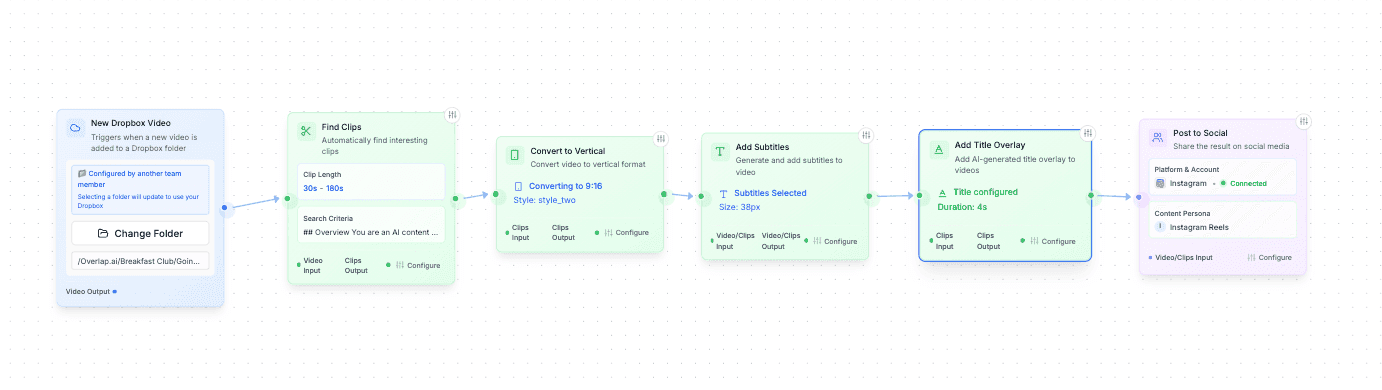
For a documented deployment, Overlap's iHeartMedia case study reports 100,000 clips and 600 million views to date. Those are that customer's reported results, not the expected outcome of this recipe. The study also includes the production workflow:
Start with one show and one editorial question
Choose a small group of recordings you know well. Write the selection brief, review every candidate and fix recurring errors before adding more sources. Keep the result you want narrow enough to evaluate: complete explanations for a particular audience, with a reasonable review cost and a clear publishing destination.
Explore ready-made Overlap workflows, or book a walkthrough with your own source material. For teams evaluating a managed operation on their channels, the clipping campaign overview explains that option.
Frequently Asked Questions
What makes a clipping agent different from a single AI edit?
A clipping agent connects a source to a repeatable sequence of selection, editing and output steps. The team can revise the sequence and reuse it as new recordings arrive.
Should every clip publish automatically?
Only when the team has deliberately chosen that behavior for the source and destination. New shows, sensitive material and unfamiliar formats are good reasons to keep a reviewer in the process.
What should I change when the agent selects the wrong moments?
Identify the repeated failure first. Missing context calls for clearer selection rules; caption errors call for vocabulary corrections; poor framing calls for different visual settings. Fix the relevant step and review a small sample again.